How to Get Hired for Remote Jobs on LinkedIn in 2026
Learning how to get hired for remote jobs on LinkedIn starts with fixing the core mistake most job seekers make: they apply and wait. They send an application through the jobs page, then check their inbox every day, and nothing happens. The reason is simple. A popular remote listing can attract hundreds of applicants in two days, and a recruiter cannot read them all. This guide shows you a better method: make your profile easy to find, search with the right filters, apply fast to the right roles, and message the hiring person directly.
This guide is for people seeking full-time remote employment, not freelance work. It covers LinkedIn only: your profile, Open to Work, job search filters, Boolean search of posts, job alerts, and outreach. It does not cover CV writing or interview skills, because EarnQuill already has guides for those, and they are linked at the end.
In this guide
- What "remote" means on LinkedIn
- Step 1: Make your profile findable
- Step 2: Turn on Open to Work the right way
- Step 3: Search properly
- Step 4: Apply well
- Step 5: Message the hiring person
- A realistic weekly routine and timeline
- What it costs and what to expect
- Common mistakes
- Risks and scams to watch for
- Frequently asked questions
What "remote" means on LinkedIn
On LinkedIn, "remote" does not always mean work from anywhere. Many listings marked remote still require you to live in a specific country, state, or time zone, because of tax, employment law, or the team's working hours. Some listings marked remote are really hybrid roles, which means you work from home some days and in an office on others.
Read the full listing before you apply, and check three things. First, the location line: does it name a country or a city, or does it say remote with no location? Second, the job description: does it say "must be based in" a place, or "working hours overlap with" a time zone? Third, the company page: does the company hire in your country at all? If the listing says US only and you live elsewhere, do not apply. Save your time for roles that can actually hire you.
This check matters most for beginners, because the most attractive remote listings are also the ones with the strictest location rules. A role that says "remote, worldwide" is rare, and a role that says "remote, UK only" is common. Apply for the second kind if you live in the UK, and skip the first kind if you do not match its location.
Step 1: Make your profile findable
Recruiters search LinkedIn the way you search Google: they type words, and LinkedIn shows them the profiles that match. If your profile does not contain the words they type, they will never see you, however good you are. Your first job is to put the right words in the right places.
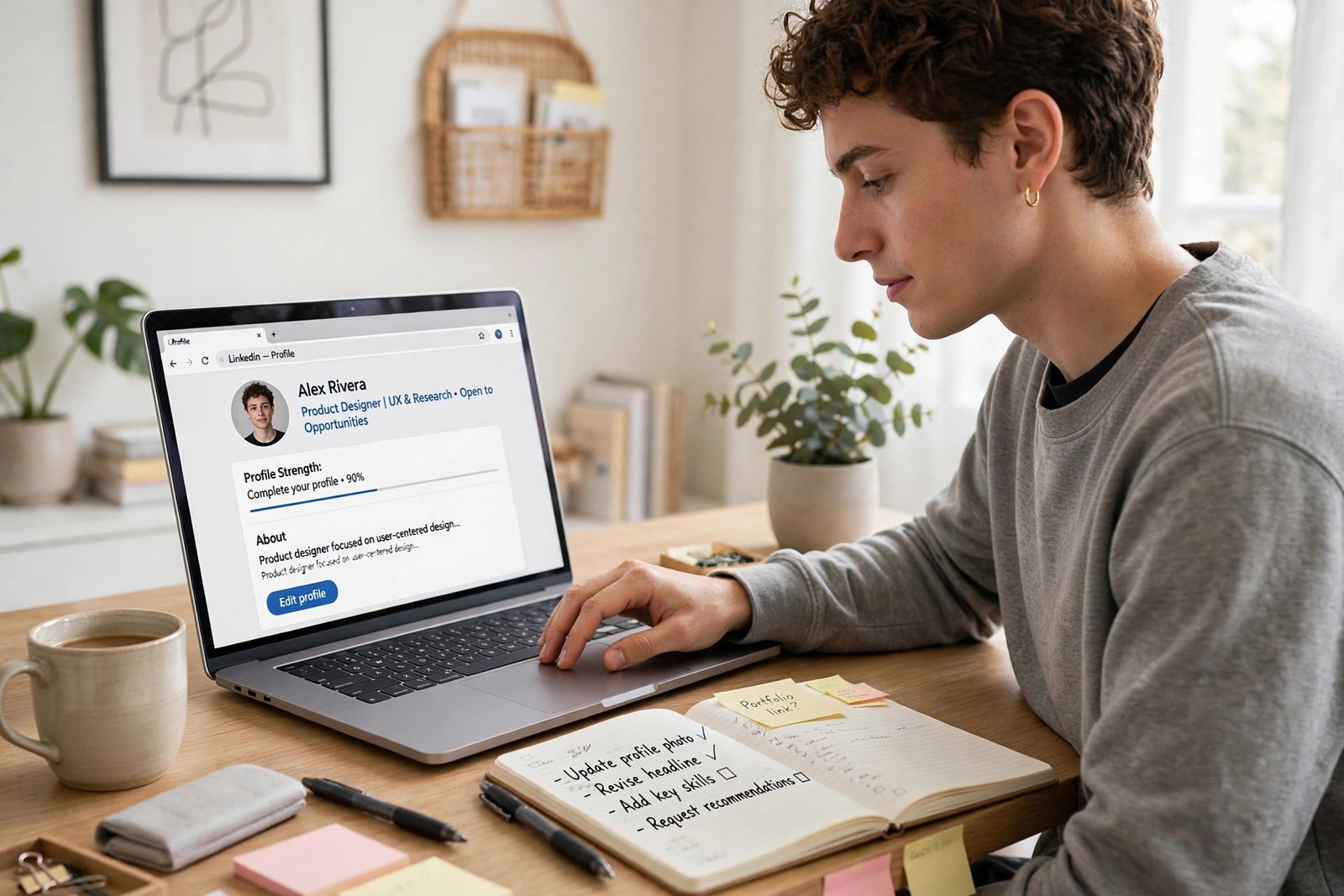
Start with your headline, which is the line under your name. Write your target role, one key skill, and one proof point, in plain words. For example: "Customer Support Specialist | Zendesk and live chat | 3 years helping customers in retail and remote support". Use the job title recruiters type, not your internal job title from your last employer, because recruiters search for standard titles.
Next, fix your About section. Write three short paragraphs: what you do, what you are good at, and what kind of remote role you want. Use the same words as the job listings you want, because those are the words recruiters search for. Add one real number, such as how many customers you helped a day, or how many tickets you closed a week, because a number makes your claim concrete.
Then fix your Experience section. For each job, write two or three bullets that start with a strong verb and end with a result. Use the keywords from your target listings, and keep the bullets short. Add your top skills to the Skills section, and ask two or three former colleagues for short recommendations, because a recommendation from a real person carries more weight than a list of skills.
Use the Featured section to show your best work. Add a link to a portfolio, a short post you wrote, or a project you finished. A custom URL helps too: go to your profile settings, edit your public profile URL, and change it to your name, so it looks professional when you share it.
One warning about outdated advice: do not follow guides that tell you to turn on Creator Mode. LinkedIn removed the Creator Mode toggle in March 2024, and its features now sit in standard profile settings. If you want a Follow button as your main profile button, set it in Settings and Privacy, under Visibility, where you can choose to make follow primary. Do not waste time looking for a toggle that no longer exists.
Step 2: Turn on Open to Work the right way
Open to Work is a LinkedIn setting that tells recruiters you are looking for work. LinkedIn's own pages say you can choose whether everyone sees it or only recruiters, and that setting it up through Job Preferences helps LinkedIn show you the right roles. See LinkedIn's own guidance on Open to Work for the current wording. The choice matters, so pick it with care.
If you are not currently employed, use the public setting, which adds a green photo frame that says Open to Work. It tells everyone, including hiring managers who browse profiles, that you are available. If you are currently employed, use the recruiters-only setting, which shows your status to recruiters using LinkedIn's hiring tools, without the public photo frame. LinkedIn says this setting is designed to hide your status from recruiters at your own company, but no setting is completely private, so keep that in mind if you are still employed.
Fill in the details properly. Add up to five job titles you want, the locations you will accept, the start date flexibility, and the types of work you want, such as full time or part time. List every location you would accept separately, because a recruiter searching for one city will not find you unless that city is on your list. Set your location to the place you want to work from, or the city you are targeting, because recruiters filter by location first.
Step 3: Search properly
Most people search LinkedIn badly. They type a job title, scroll through hundreds of results, and apply to whatever looks good. A better search uses filters, and it takes five minutes to set up.
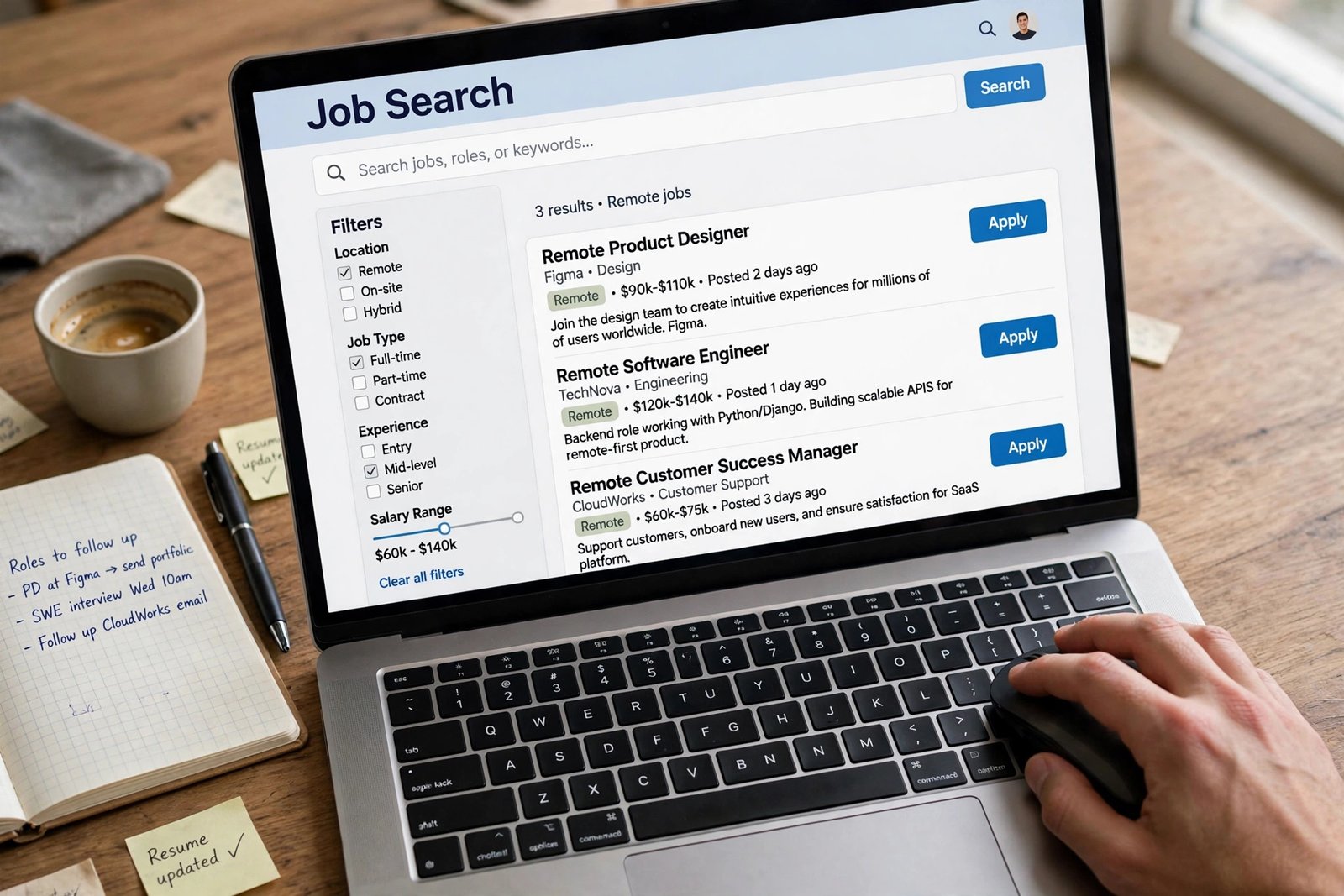
Go to the Jobs page, type your target role, and set the location to Remote, or to the city you want. Then use the filters. Set the workplace type to Remote, which is the On-site/Remote filter. Set the date posted to the past 24 hours or the past week, because new listings get the most attention from recruiters. Set the experience level to Entry level or Associate if you are a beginner. Turn on the Easy Apply filter only when you want to apply quickly, and turn it off when you want to apply on the company site instead.
Save the search, and turn on job alerts, so LinkedIn emails you when a new matching role appears. Check your alerts every morning, and apply to the newest roles first. A listing posted two days ago is worth far more than a listing posted two weeks ago, because the recruiter may already have a shortlist.
Boolean search is a second way to find roles, and it works on posts, not on the jobs page. Boolean search means using the words AND, OR, and NOT to combine search terms. For example, search posts for "hiring" AND "remote" AND "customer support", then filter the results to posts from the last week, sorted by latest. This finds hiring managers who post about a role before it reaches the jobs page. Try one Boolean search a week, and save the ones that work.
Step 4: Apply well
Apply fast, but apply well. When you find a role that fits, apply within 48 hours of it being posted, because after that the pile of applicants grows too large for a recruiter to read fully. Read the full listing first, and check the location, the requirements, and the shift pattern. If you match most of the requirements, apply, even if you do not match all of them. If you match only a few, skip it and save your time.
Easy Apply is useful when the role is a good fit and the application is short. But for roles you really want, apply on the company site instead, because the company sees those applications directly, and you can attach a tailored CV. For the CV itself, read how to write a CV for remote jobs, because this guide does not repeat that advice.
After you apply, save the job, and note the date, the company, and the role in a simple sheet. If you hear nothing after two weeks, send one polite follow-up to the hiring manager if you can find them, then move on. Do not apply for the same role twice, and do not send the same generic application to fifty roles. Five tailored applications a day beat fifty copied ones.
Step 5: Message the hiring person
Direct outreach is the part most job seekers skip, and it is the part that gets replies. When you find a role you really want, find the hiring manager or the recruiter for that team, and send a short message. Do not message the HR team in general, and do not message the company page. Find the person who owns the role.
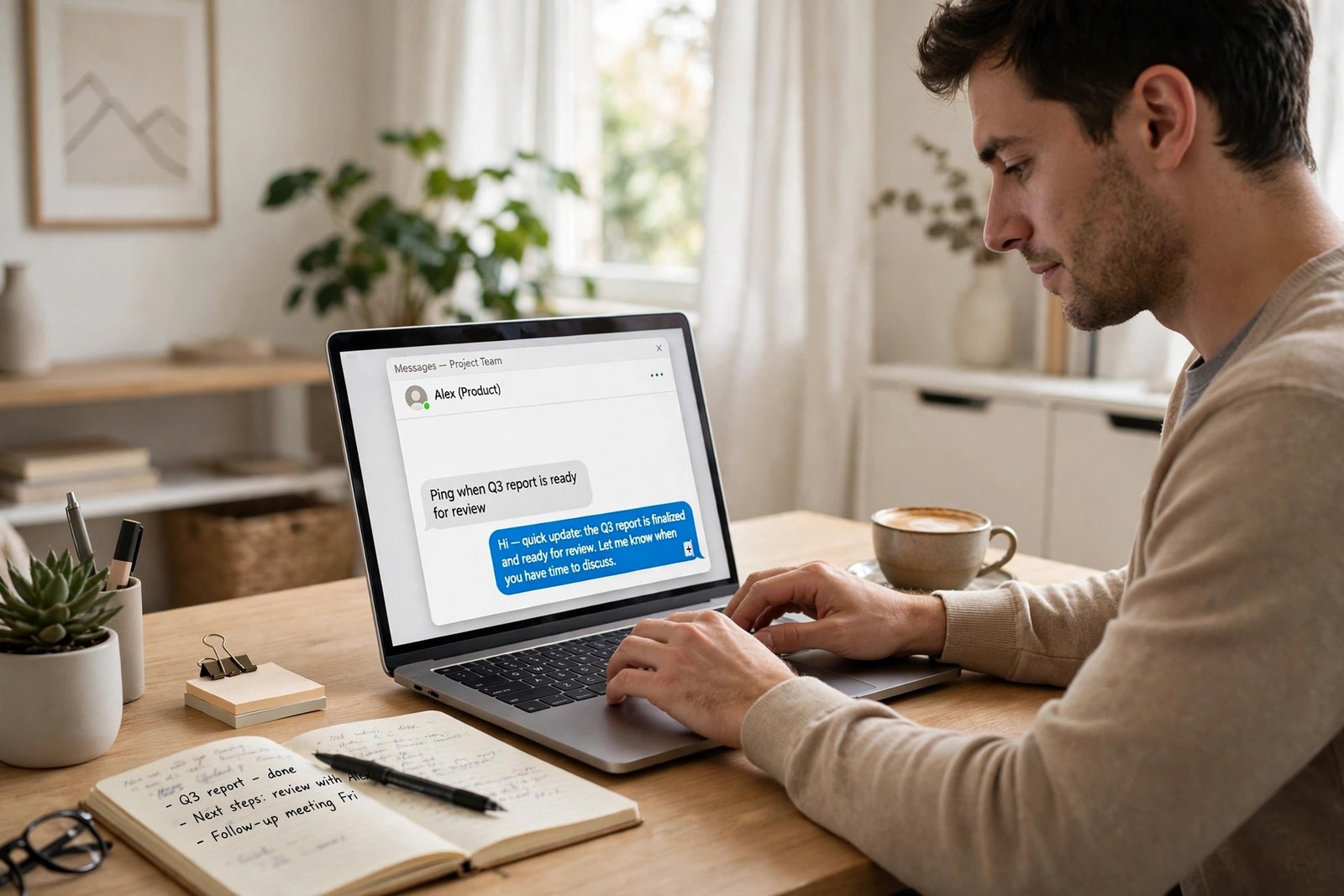
Your message should be under 50 words, and it should have three parts: who you are, why you fit this role, and one question. Here is a template you can adapt: "Hello, I am a customer support specialist with three years in retail and remote chat support. I applied for your remote support role today, and I have Zendesk experience from my last job. Is there anything else you need from me to consider my application?"
Send the message after you apply, not before, so the person can find your application. Wait three days, then send one short follow-up if there is no reply. Do not send more than two messages, and do not ask for a job in the first message. You are asking for a look at your application, not for a favour. Keep your tone polite and professional, and do not use a copied message for every role.
A realistic weekly routine and timeline
Use a weekly routine, so your search stays steady instead of intense for two days and then silent for a week. On Monday, run your saved searches and your Boolean post search, and apply for the newest roles. On Tuesday to Thursday, send two or three outreach messages a day to hiring managers for the roles you applied for, and update your Featured section with one useful post. On Friday, review your tracker, follow up on applications from two weeks ago, and update your Open to Work titles if your search has changed.
Expect a slow timeline. Replies usually take two to three weeks, not two to three days, and a first offer can take one to three months from when you start. That is normal, and it does not mean your method is failing. If you get no replies after a month, change one thing at a time: your headline, your About section, or the roles you apply for, and test it for two weeks before you change anything else.
What it costs and what to expect
LinkedIn is free for job searching, and you do not need LinkedIn Premium to get hired. Premium adds features such as seeing who viewed your profile and sending more messages, but it is optional, not required. Do not pay for Premium until you have used the free method for a month and you know what you are missing.
The main cost is your time: about one hour a day for searching, applying, and messaging, plus time to fix your profile at the start. Do not pay anyone who promises to get you hired on LinkedIn for a fee, and do not pay for a service that applies for jobs on your behalf, because those services send generic applications that rarely work.
Example only: these numbers are not typical results. Imagine you apply for five roles a day, five days a week, for four weeks. That is 100 applications. If one in ten gets a reply, that is 10 replies, and if one in ten replies leads to an interview, that is one interview. Those figures are an illustration, not a promise, and your real numbers will differ. The point is that volume alone does not work; tailored applications and direct messages matter more than the count.
Common mistakes
- Applying and waiting, instead of messaging the hiring person after you apply.
- Using an internal job title in your headline, instead of the title recruiters search for.
- Turning on Open to Work with the public frame while you are still employed, without thinking about who will see it.
- Applying to "remote" roles without checking the location line, then wondering why there is no reply.
- Sending the same copied message to every hiring manager, instead of writing a short message for each role.
- Following outdated guides that tell you to turn on Creator Mode, which LinkedIn removed in March 2024.
- Paying for LinkedIn Premium before you have tested the free method for a month.
Risks and scams to watch for
LinkedIn has fake job posts and fake recruiters, and they target remote job seekers. The Federal Trade Commission says honest employers will never ask you to pay to get a job, and will never ask you to deposit a cheque and send part of the money back. Read the FTC guidance on job scams before you apply anywhere.
Watch for these warning signs. A recruiter contacts you with a job offer before you applied, and the role is vague. The recruiter asks for a fee, or asks you to pay for training or equipment. The recruiter asks for your bank details, your passport number, or a photo of your ID before any interview. The job is posted by a profile with no photo, no connections, and no company page. A real recruiter has a real profile, a real company page, and a real interview process.
Verify every recruiter before you reply. Check their profile, check the company page, and check that the job also appears on the company's own careers page. If the role does not appear there, ask the recruiter why, and do not share personal details until you are sure. For the full checklist, read how to spot online job scams.
Frequently asked questions
How do I find remote jobs on LinkedIn?
Use the Jobs page, set the location to Remote, and use the filters for workplace type, date posted, and experience level. Save the search and turn on job alerts, so you see new roles early. Also try Boolean search of posts, using terms such as "hiring" AND "remote" AND your target role, filtered to the last week.
Should I turn on Open to Work?
Yes, if you are looking for work. Use the public setting if you are not currently employed, and the recruiters-only setting if you are employed and want to keep your search private. Fill in your target job titles and locations, because recruiters search on those words.
Is LinkedIn Premium worth it for job searching?
No, it is not required. The free version covers searching, applying, and messaging. Premium adds extras such as seeing who viewed your profile, but you can get hired without it. Try the free method for a month first, then decide.
How do I message a hiring manager on LinkedIn?
Find the person who owns the role, and send a short message under 50 words after you apply. Say who you are, why you fit, and ask one question. Send one follow-up after three days if there is no reply, and do not send more than two messages.
Why am I not getting replies on LinkedIn?
The usual reasons are a headline that does not match the titles recruiters search for, applications sent weeks after the role was posted, or a profile with no keywords from the listings. Fix one thing at a time, starting with your headline, and test it for two weeks before you change anything else.
Conclusion: profile, search, apply, message
Getting hired for remote jobs on LinkedIn in 2026 works when you combine four steps: a profile that recruiters can find, Open to Work set the right way, a filtered search that finds new roles early, and a short message to the hiring person after you apply. Applying and waiting is the slowest route. A findable profile plus a direct message is faster, and it puts your application in front of a real person.
Your next step is to fix your headline today, using the formula in Step 1. Then read how to write a CV for remote jobs, how to pass a remote job interview, and how to spot online job scams before you apply. You can also browse all our guides in the online jobs category.
Note for the reader: LinkedIn features change, so check LinkedIn's own help pages if a setting has moved. Earning results vary; nothing on this site is financial advice.