
How to Learn Excel Online in 2026
To learn Excel online, start with cells, formulas, and tables, then move to charts and PivotTables, and practise in a real workbook after every lesson. Most beginners waste time because they memorise menu clicks without understanding formulas. This guide shows you the right order, free and paid options, and honest timelines for useful skill.
In this guide
- What Excel is and who should learn it
- Step 1: Set up Excel and learn the screen
- Step 2: Learn formulas and functions in order
- Step 3: Organise data with tables and formatting
- Step 4: Summarise data with charts and PivotTables
- Step 5: Practise with real tasks and projects
- What it costs and what to expect
- Common mistakes
- Risks and scams to watch for
- Frequently asked questions
What Excel is and who should learn it
Excel is spreadsheet software from Microsoft. A spreadsheet is a grid of rows and columns where you store data and calculate results. People use Excel for budgets, reports, stock lists, project plans, and data checks.
You should learn Excel if you work with numbers or lists in any job. Office roles, finance work, marketing reports, and small business tasks all use spreadsheets. Excel skill also helps freelancers, because many clients need reports and clean data. If you want wider context, read our guide on the best digital skills to learn.
Excel suits you if you like clear steps and visible results. You type a formula and you see the answer at once. It suits you less if you want to build software, because that needs programming. For coding paths, read our guide on how to learn coding for beginners.
Step 1: Set up Excel and learn the screen
First, open Excel in the way you will use it most. You can use the desktop app, or Excel on the web through a Microsoft account. Check which version you have, because menus and functions differ between versions. Lessons for a different version can confuse you.
Next, learn the basic parts of the screen. A workbook is the file. A worksheet is one grid inside the file. A cell is one box in the grid, named by its column and row, such as B3. The formula bar shows what you typed in the selected cell. Learn to enter data, select ranges, and save files before you learn advanced tools.
Microsoft offers free official training. You can start with Microsoft Excel video training, which lists short lessons on tables, PivotTables, and key functions. Use it as your reference when a course explains something in a way that does not match your screen.
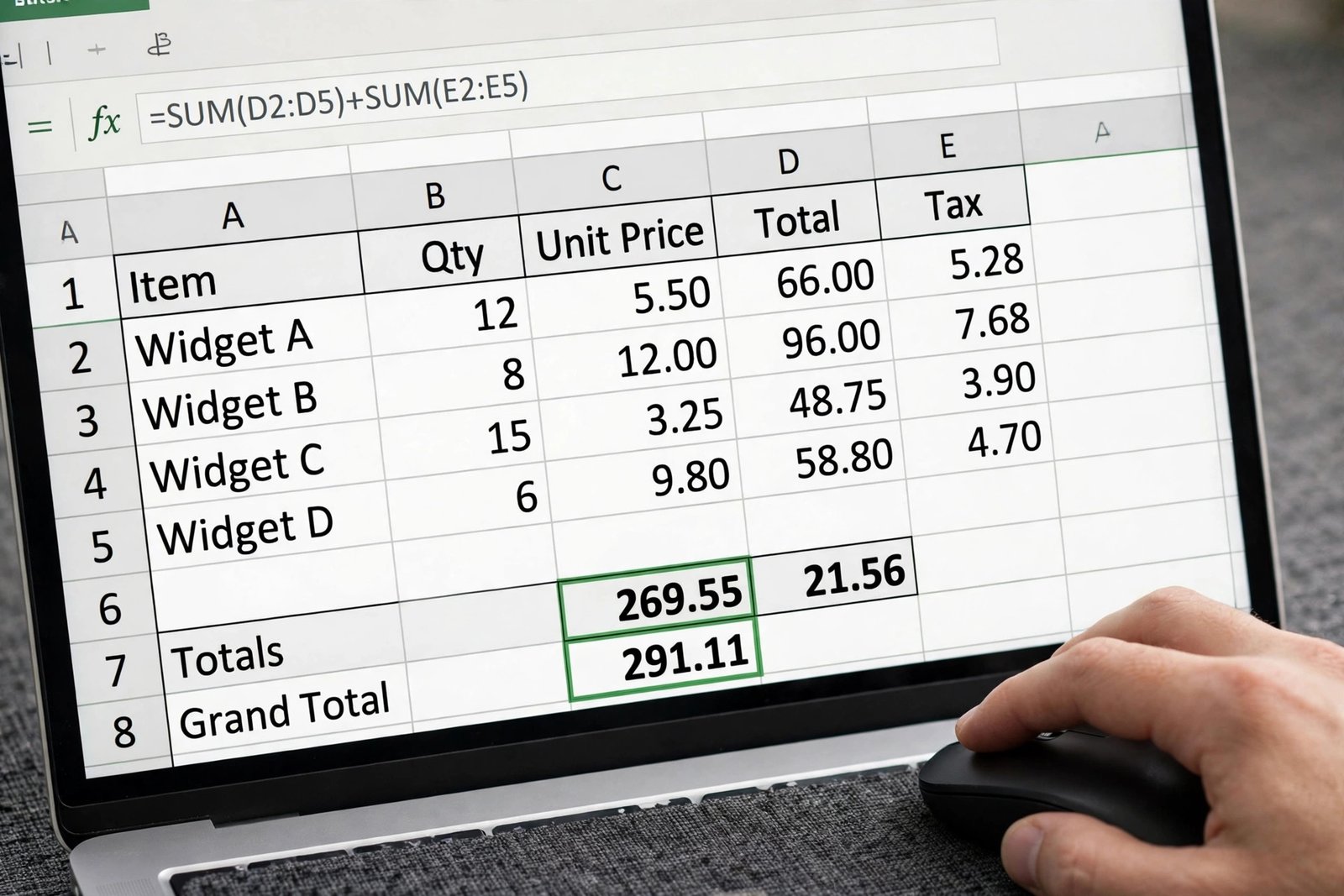
Step 2: Learn formulas and functions in order
A formula is an instruction that calculates a result, and it starts with an equals sign. A function is a ready made formula with a name, such as SUM or AVERAGE. Learn functions in groups, and practise each group in a workbook.
| Order | Functions to learn | What they help you do |
|---|---|---|
| 1 | SUM, AVERAGE, COUNT, MIN, MAX | Total and summarise numbers quickly |
| 2 | IF | Show different results based on a condition |
| 3 | SUMIF, COUNTIF, AVERAGEIF | Summarise only rows that match a rule |
| 4 | XLOOKUP or VLOOKUP | Find matching data in another table |
| 5 | TEXT, LEFT, RIGHT, TRIM | Clean and format text data |
| 6 | TODAY, DATE, DATEDIF | Work with dates and deadlines |
Learn cell references with care. A relative reference changes when you copy a formula. An absolute reference stays fixed, and you mark it with dollar signs. Many beginner errors come from copied formulas that point to the wrong cells. Practise copying formulas across rows and check the results by hand.
Do not try to learn every function. About twenty functions cover most daily work. Learn those well, then look up new functions only when a task needs them. The official Microsoft training page above links to function lessons, so you can check syntax there.
Step 3: Organise data with tables and formatting
Good data structure makes every later step easier. Put one type of data in each column. Give each column a clear header. Do not leave blank rows inside your data. Do not merge cells inside data ranges, because merged cells break sorting and formulas.
Use Excel Tables for lists. A Table is a named range with filters and automatic formatting. Tables expand when you add rows, and formulas can use column names instead of cell addresses. That makes formulas easier to read and check.
Format for clarity, not decoration. Use number formats for money, percentages, and dates. Use freeze panes to keep headers visible. Use filters to view part of your data. Use data validation to limit what people can type in a cell, which reduces errors in shared files.
If you plan to work with data beyond spreadsheets, read our guide on how to learn data analysis online, because clean tables are the first step in analysis work. For bookkeeping tasks, read our guide on how to learn bookkeeping online.
Step 4: Summarise data with charts and PivotTables
Charts turn numbers into pictures. Use a column chart to compare categories, a line chart to show change over time, and a bar chart for long labels. Keep charts simple. One chart should answer one question, and it needs a clear title and labelled axes.
A PivotTable is a summary tool that groups and totals data without formulas. You drag fields into rows, columns, and values, and Excel builds the summary. PivotTables help you answer questions such as total sales by month or count of orders by region. Learn PivotTables after you can build clean tables, because messy data gives messy summaries.

Check every summary against the raw data. Add the totals by hand for a small sample. If the sample matches, your summary is likely correct. This habit prevents the most common spreadsheet errors at work.
Step 5: Practise with real tasks and projects
Practise with tasks that look like real work. Build a monthly budget, a stock list with low stock warnings, and a sales summary with a PivotTable and chart. Use sample data you create yourself, so you understand every number.
Keep your practice files organised. Name files clearly, save versions, and add a short note sheet that explains what each file does. If you later sell spreadsheet help as a service, these files become samples. Our guide on how to sell spreadsheets and calculators online explains that path, but only consider it after you can build reliable files.
Worked example
Example only: these numbers are not typical results.
Imagine you practise Excel for 30 minutes a day, 4 days a week.
- Time per week: 30 minutes times 4 days, which is 120 minutes
- Time per month: 120 minutes times 4 weeks, which is 480 minutes
- Time in hours per month: 480 divided by 60, which is 8 hours
- Time in 3 months: 8 hours times 3, which is 24 hours
At that pace, many beginners learn core formulas in month one, tables and charts in month two, and PivotTables in month three. If you practise 1 hour a day, you reach the same point in about 6 weeks. Recalculate with your own schedule, and judge progress by tasks you can finish, not by videos watched.
What it costs and what to expect
You can learn Excel for no course cost. Microsoft offers free video training, and many teachers offer free lessons and practice files. Paid options include one time course fees and subscriptions that add structure, exercises, and certificates. Prices change often, so check the course page for the current price as of November 2026 before you pay.
You may also need Excel itself. Excel on the web works with a free Microsoft account for basic use. The desktop app usually comes with a Microsoft 365 subscription or a one time licence. Check what you already have before you buy anything, because many workplaces and schools already provide access.
Expect useful skill in weeks and confident skill in months. Basic formulas and formatting usually take 2 to 4 weeks of regular practice. PivotTables and clean reporting usually take 2 to 3 months. Excel skill alone does not guarantee income. Results vary with your practice, your job market, and how well you present your work.
Common mistakes
- Typing numbers as text, which makes formulas return wrong results or errors.
- Using merged cells inside data, which breaks sorting, filtering, and PivotTables.
- Copying formulas without checking references, which silently totals the wrong cells.
- Building charts before cleaning the data, which produces clear pictures of wrong numbers.
- Learning rare functions first, while basic functions and tables remain shaky.
- Saving only one copy of an important file, with no backup or version history.
- Formatting by hand instead of using Tables and number formats, which wastes time and hides errors.
- Watching lessons without practising in a workbook, which feels like learning but builds no skill.
Risks and scams to watch for
Be careful of courses that promise a job or a set income after a short Excel course. Excel skill helps in many roles, but no course can guarantee hiring or pay. Check the syllabus for formulas, tables, PivotTables, and practice files. If a course lists only video hours and a certificate, it may not build real skill.
Watch for fake certificates and copied course content sold at high prices. A useful certificate comes from a known provider and follows real assessment. Sellers who offer instant certificates with no work are selling paper. Also watch for downloads that ask for card details or install extra software. Get Excel and training from official or well known sources.
If you lose money to a scam, contact your payment provider first, because they may be able to reverse a payment. In the United States, the Federal Trade Commission explains how to report fraud. Readers in other countries should use their own consumer protection body. Also protect shared workbooks, because spreadsheets often hold sensitive business data. Do not share files with personal data on public links.
Frequently asked questions
How long does it take to learn Excel online?
Basic formulas and formatting usually take 2 to 4 weeks of regular practice. Confident use of tables, charts, and PivotTables usually takes 2 to 3 months. Your pace depends on practice time and how often you use Excel for real tasks.
Can I learn Excel online for free?
Yes. Microsoft offers free video training, and many teachers publish free lessons with practice files. Paid courses add structure and feedback. Start free, then pay only if you need a guided path or assessed exercises.
Is Excel still worth learning in 2026?
Yes. Excel remains common in offices, finance, marketing, and small business work. Employers still ask for spreadsheet skill in many roles. The value comes from clean data, correct formulas, and clear reports, not from knowing every menu.
Should I learn XLOOKUP or VLOOKUP first?
Learn XLOOKUP if your Excel version supports it, because it is clearer and more flexible. Learn VLOOKUP as well if you work with older files or older versions. Check your version first, because function support differs by version.
Do I need a certificate to prove Excel skill?
No. A certificate can help, but sample workbooks prove more. Build clean practice files with correct formulas and clear summaries. Employers and clients trust work they can open and check more than a certificate alone.
Can Excel skill help me earn money?
Excel skill can support office jobs, freelance reporting, and data cleanup work. It does not guarantee income. Results vary with demand, your portfolio, your communication, and your reliability. Build proof of work before you offer services.
Conclusion
To learn Excel online, set up your version, learn core formulas in order, build clean tables, then add charts and PivotTables with careful checks. Practise in real workbooks every week, and judge progress by tasks you can finish correctly. If you want related skills, read our guides on how to learn data analysis online, how to learn bookkeeping online, and how to learn Python online. You can also browse all our guides in the digital skills category.
Earning results vary; nothing on this site is financial advice.