
How to Sell Digital Products on WooCommerce in 2026
To sell digital products on WooCommerce, you install the free plugin on a WordPress site, create a product, tick the Virtual and Downloadable boxes, upload your file, set a download limit and expiry, and connect a payment gateway. WooCommerce then delivers the file automatically after payment and takes no commission on your sales. This guide walks through the full setup, including the download settings most guides skip, and the security checks that protect your files.
In this guide
- Why WooCommerce suits digital products
- Step 1: Install WooCommerce and connect payments
- Step 2: Set your download settings first
- Step 3: Create a virtual and downloadable product
- Step 4: Choose the file download method
- Step 5: Decide when buyers get access
- Step 6: Protect your files and test a purchase
- What it costs and what to expect
- Common mistakes
- Risks and scams to watch for
- Frequently asked questions
Why WooCommerce suits digital products
WooCommerce is a free, open source plugin that turns a WordPress site into an online store. Unlike a marketplace, you own the store, the customer list, and the checkout. Unlike a hosted platform, WooCommerce takes no percentage of your sales. You pay only for hosting, your domain, and the card processing fees.
That control comes with work. You are responsible for updates, backups, security, and tax settings. If you want a shop with no maintenance, a hosted platform is a better fit, and our guide on how to sell digital products on Payhip covers one of the simplest options. If you already run WordPress, or you want full control over your store, WooCommerce is hard to beat.
You can sell almost any digital product this way: ebooks, templates, fonts, music, stock photos, software, WordPress themes and plugins, and online courses. Our guide on how to sell WordPress themes online covers one of the most popular options in detail.
Step 1: Install WooCommerce and connect payments
Install WooCommerce from Plugins, then Add Plugin, in your WordPress dashboard, and finish the setup screens. The setup asks for your store address, your currency, and what you sell. Answer plainly, because these settings affect taxes and the checkout.
Next, open WooCommerce, then Settings, then Payments, and connect a card gateway. WooPayments is the native gateway built by WooCommerce, and Stripe and PayPal are the most common alternatives. Connect one card gateway and PayPal if you can, because some buyers prefer PayPal at checkout.
Test the payment process in test mode before you go live. Every major gateway gives you sandbox credentials so you can place a test order without charging a real card. Do not skip this, because a payment setting that looks right can still fail at checkout.
Step 2: Set your download settings first
Before you add any product, set how WooCommerce delivers files. Open WooCommerce, then Settings, then Products, then Downloadable products. There are three settings that matter most.
First, the file download method, which decides how the file reaches the buyer. Second, the access rules, which decide when the buyer can download. Third, the filename setting, which adds a random string to each file name so the download address is hard to guess.
| Setting | What to choose | Why it matters |
|---|---|---|
| File download method | Force downloads | Hides the real file address and works on most hosts |
| Downloads require login | On for higher value products | Only signed in customers can download |
| Grant access after payment | On | Buyers get files when the order is Processing, not only when it is Completed |
| Append a unique string to filename | On, which is the default | Makes download addresses hard to guess |
WooCommerce explains each of these settings in its official digital and downloadable product guide, and the full settings reference is in the official products settings documentation.
Step 3: Create a virtual and downloadable product
Go to Products, then Add New. Enter the product name and price, and write a description that says what is inside the file, who it is for, and what the buyer gets. Add a product image, even for a digital good, because a mockup or cover image does most of the selling.
Then scroll to the Product Data box and tick two boxes.
- Tick Virtual. This removes shipping, because nothing is posted.
- Tick Downloadable. This adds the Downloadable files table.
Click Add File, give the file a name buyers will recognise, such as "Pricing Playbook PDF", and upload it from this product screen. Upload from the product screen, not from the Media Library, because the Media Library is public and anyone with the direct address can open a file stored there. WooCommerce stores product files in a protected folder and adds a random string to the file name.
Set a download limit and an expiry. A limit of 3 to 5 downloads and an expiry of 365 days works well for most ebooks and templates. Leave the limit blank for unlimited downloads, and leave the expiry blank for no expiry. Software sold with a licence usually needs unlimited downloads tied to an active licence, so plan that before you publish.
Step 4: Choose the file download method
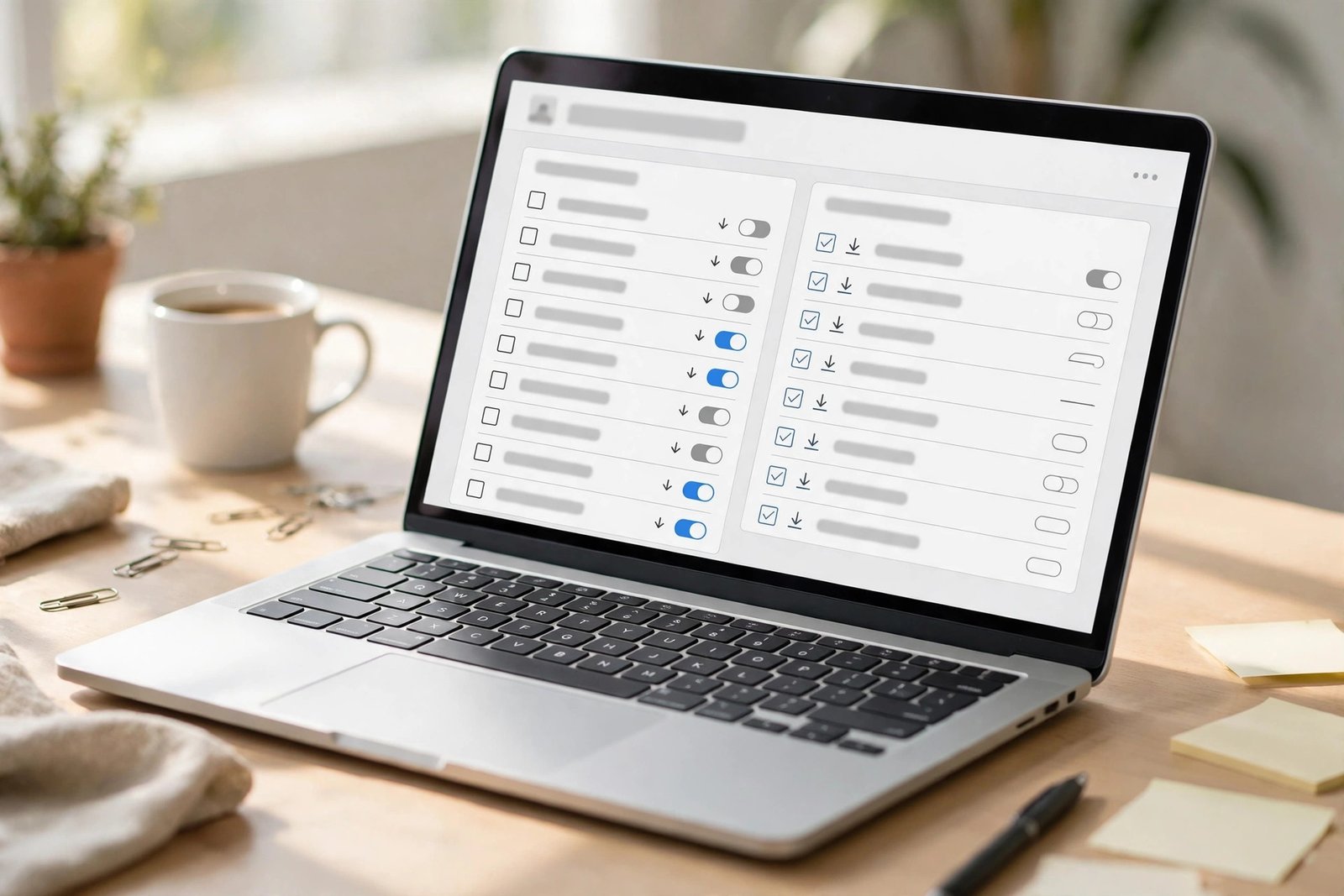
There are three file download methods, and the choice decides how safe your files are.
Force downloads serves the file through PHP, so the real file address is never shown to the buyer. This is the right choice for most stores. The drawback is that large files can time out on a slow server, because PHP has to stream every byte.
X-Accel-Redirect or X-Sendfile hands delivery to the web server, which is faster and handles large files better. Your host must have the module installed and enabled, so ask your host before you pick it. On NGINX, the server also needs an explicit rule to protect the uploads folder.
Redirect only sends the buyer straight to the file address. Anyone with the link can open the file, even without paying, so avoid this method unless you have a specific reason and you accept the risk.
If you switch methods later, place a fresh test order and download the file once. An old order's link proves nothing, because it may still be cached by your browser.
Step 5: Decide when buyers get access
The access settings sit on the same screen as the download method. "Grant access to downloadable products after payment" means buyers can download while the order is still Processing, rather than waiting for you to mark it Completed. Turn this on, or your buyers will wait for a manual step that you will forget.
For products marked as both virtual and downloadable, WooCommerce sets the order to Completed automatically once payment clears. If a product is only marked downloadable, you must mark the order Complete by hand before the buyer can download. That is one more reason to tick both boxes.
The delivery email sends the same download links, so buyers can come back to them later without finding the thank you page. Logged in customers also get a Downloads tab in My Account. Guest buyers only have the email and the thank you page, so write a clear delivery email that says how many downloads remain and when the link expires.
Step 6: Protect your files and test a purchase
WooCommerce adds a file to your uploads folder that blocks direct web access on Apache servers. That file does not work on NGINX, and it does not guarantee protection on every server. Check it yourself. Open Tools, then Site Health, then Status, and read the WooCommerce uploads directory protection result. If it says your files can be reached directly, ask your host to block direct web access to the uploads folder while still allowing your chosen download method to serve files.
Then buy your own product once, as a guest, before launch. Open the order confirmation page and click the download link. Check that the file downloads, that the download count falls, and that the confirmation email arrives with the same link. Test on a phone too, because many buyers download on mobile, and some file types, such as ZIP files, do not open cleanly on every phone.

Worked example
Example only: these numbers are not typical results.
Imagine you sell an ebook for 29 US dollars, your hosting costs 8 US dollars a month, and buyers pay by card through Stripe at the standard United States rate of 2.9 percent plus 0.30 US dollars.
- Sale price: 29.00 US dollars
- Stripe fee per sale: 29.00 times 2.9 percent is 0.84, plus 0.30, which is 1.14 US dollars
- WooCommerce fee per sale: 0.00 US dollars, because WooCommerce takes no commission
- You keep per sale: 29.00 minus 1.14, which is 27.86 US dollars
- With 20 sales in a month: 20 times 27.86 is 557.20 US dollars, minus 8 US dollars of hosting, which is 549.20 US dollars
The same 20 sales on a platform that takes 10 percent would cost you about 58 US dollars in platform fees alone. That is the WooCommerce advantage, and it is why the setup work is worth doing if you plan to sell for more than a few months.
What it costs and what to expect
WooCommerce itself is free. Your real costs are hosting, which is a few dollars a month for shared hosting, a domain at about 10 to 15 US dollars a year, and the card processing fee on each sale. Budget more if you buy a paid theme or a paid extension, such as WooCommerce Subscriptions for yearly licence renewals, but none of these are needed for a first product.
Expect to spend a day setting up the store, the payment gateway, and your first product, and another day testing the checkout and the download flow. After that, each sale is automatic.
Be realistic about traffic. WooCommerce brings you no buyers. Your sales come from your own audience, your email list, search traffic, or ads. Plan for a slow first month, then steady growth as your product pages start to rank and your list grows. If you want to drive traffic with ads, read our guide on how to sell digital products with Google Ads.
Tax needs attention. Turn on taxes under WooCommerce, then Settings, then General, and set your rates under the Tax tab. VAT on digital goods follows the buyer's location in many countries. In the European Union, VAT is due in the customer's country above a shared 10,000 euro threshold, and the One Stop Shop lets you report it through one registration. United States sales tax on digital goods is set state by state and the rules differ widely. The UK government guidance on VAT rules for digital services explains the place of supply rules, and a tax plugin that looks up rates by country saves a lot of manual work. This is general information, not tax advice, so check with an accountant who knows your countries before you file.
Common mistakes
- Choosing Redirect only as the download method, which lets anyone with the link download your file for free.
- Uploading the product file through the Media Library, where the direct address is public.
- Leaving Cash on Delivery or bank transfer enabled, so a buyer can get the download link for an order that is never paid.
- Setting a download limit of 1, which creates support emails from buyers who switch devices.
- Forgetting to test the download flow on a phone, where ZIP files and large PDFs often fail to open.
- Not checking Site Health, so the uploads folder stays open and the files are downloadable by anyone who guesses the address.
- Pricing without allowing for the card processing fee, which takes a bigger share of small sales.
- Selling software without a licence plan, then having no way to handle renewals or updates.
Risks and scams to watch for
The biggest risk with WooCommerce is not a scam, it is a misconfiguration that gives your product away. A store that uses Redirect only, or that stores files in the Media Library, or that runs on NGINX without a protection rule, can leak every file to anyone who finds the address. Run the Site Health check and the test purchase in Step 6, and repeat both after any change to your server or your settings.
Watch for fake WooCommerce extensions and nulled plugins sold outside the official marketplace. A nulled plugin is a paid plugin offered for free, and it often contains hidden code that steals data or injects spam links into your store. Buy extensions only from WooCommerce or a trusted developer, and keep everything updated.
Be careful of "WooCommerce experts" who offer to fix your store for a fee paid in advance through an irreversible method. Ask for references, agree the work in writing, and pay through a method that lets you dispute a charge. If you lose money to a scam, report it to your payment provider first. In the United States, you can also report fraud to the Federal Trade Commission, and the FTC explains how to report fraud on its consumer advice site.
If you want a hosted platform with no server work, compare WooCommerce with the options in our guides on how to sell digital products on Shopify and how to launch a digital product on Gumroad.
Frequently asked questions
Can I sell digital products on WooCommerce for free?
Yes. WooCommerce is free and open source, and it takes no commission on your sales. You still pay for WordPress hosting and a domain, and your payment gateway charges a processing fee on each sale, usually about 2.9 percent plus 0.30 US dollars for a standard United States card payment. There is no monthly fee from WooCommerce itself.
What is the difference between virtual and downloadable in WooCommerce?
Virtual means the product is not shipped, so WooCommerce removes the shipping fields and the shipping calculator at checkout. Downloadable means the customer gets one or more files, so WooCommerce adds the file, download limit, and download expiry fields. Most digital products need both boxes ticked. Services and memberships are often virtual only, because there is no file to download.
How do I stop people sharing my download links?
Use Force downloads or X-Accel-Redirect as your download method, keep "Append a unique string to filename" turned on, and set a download limit of 3 to 5. Then check Site Health to confirm your uploads folder is protected, and ask your host to block direct access if it is not. You cannot stop all sharing, but these steps stop casual link sharing.
Do I need a plugin to sell digital products on WooCommerce?
No. The core setup needs no extra plugin. You may want a licence manager plugin if you sell software with licence keys, and a subscriptions extension if you sell yearly renewals. Both are optional, and you should only add them when your product actually needs them.
How do buyers get their files after paying?
Buyers get a download link on the order confirmation page, in the order confirmation email, and in the My Account Downloads tab if they have an account. If you turned on "Grant access after payment", the link works as soon as the order is Processing. If not, the buyer must wait until you mark the order Complete.
Can I sell digital products and physical products in the same WooCommerce store?
Yes. Create the digital products as virtual and downloadable, and the physical products as normal products with shipping. Be careful with payment methods, because Cash on Delivery and bank transfer make no sense for digital goods. Hide those methods for digital products, or a buyer can get a download link for an order that is never paid.
Conclusion
To sell digital products on WooCommerce, install the plugin, connect a card gateway, set your download settings first, create a virtual and downloadable product, choose Force downloads, protect your uploads folder, and place a test order before you launch. You pay no commission, you own the store and the customer list, and the trade is that you handle the setup, the updates, and the security yourself. If a hosted platform suits you better, read our guides on how to sell digital products on Shopify and how to launch a digital product on Gumroad, and if you want to drive traffic, read our guide on how to sell digital products with Google Ads. You can also browse all our guides in the digital products category.
Earning results vary; nothing on this site is financial advice.